eSIM Activation Process
Follow these steps to purchase and activate your Airalo eSIM. The process typically takes 5–10 minutes and can be completed before you leave home.
→ Check the eSIM Selection Matrix
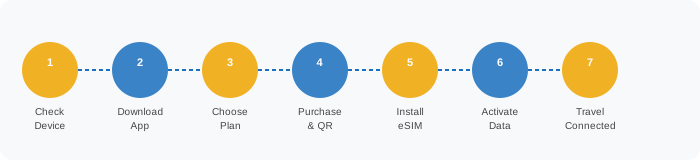
Step-by-Step Activation Guide
-
Check Device Compatibility
Before purchasing, confirm your device supports eSIM. Visit our device compatibility guide or check your phone's settings (iOS: Settings > General > About > look for "Digital SIM"; Android: Settings > Network > SIM > Add eSIM).
-
Confirm Device is Carrier-Unlocked
Your device must be unlocked to use a third-party eSIM. Contact your UK carrier to request an unlock if needed. Most UK carriers unlock devices after the contract period ends or upon request.
-
Download the Airalo App
Download the official Airalo app from the App Store (iOS) or Google Play (Android). The app is free and is the primary interface for purchasing and managing eSIM plans.
-
Create or Log In to Your Airalo Account
Register with your email address and set a secure password. Verify your email before proceeding. Your account stores all purchased eSIM profiles and order history.
-
Search for Your Destination
Use the Airalo app's search function to find plans for your destination country, region, or global coverage. Use our selection matrix to identify the best plan before opening the app.
-
Select and Purchase a Plan
Choose a plan based on data allowance, validity, and price. Review the plan details carefully — note whether hotspot is included, which networks are supported, and the activation trigger (purchase date vs first use).
-
Receive Your QR Code
After purchase, you will receive a QR code via email and within the Airalo app. This QR code is your eSIM profile — treat it like a password. Do not share it, as it can only be used once.
-
Install the eSIM Profile
iOS: Go to Settings > Cellular > Add Cellular Plan > scan the QR code.
Android: Go to Settings > Network & Internet > SIMs > Add eSIM > scan the QR code.
Note: Some Android devices require manual entry of the activation code instead of QR scanning. -
Configure Data Settings
After installation, set the eSIM as your preferred data line. On iOS, go to Settings > Cellular > Cellular Data and select the eSIM. On Android, go to Settings > Network > Mobile Data and select the eSIM profile.
-
Test Connectivity at Home
If your plan activates on first use (not on purchase date), you can test the eSIM installation at home without consuming data. Verify the profile appears in your device settings before travelling.
Troubleshooting Common Issues
QR code won't scan
Ensure your camera is clean and the QR code image is clear. Try increasing screen brightness on the device displaying the QR code. Alternatively, use the manual activation code provided in the Airalo app.
eSIM profile installed but no data connection
Check that the eSIM is set as the active data line in your device settings. Restart your device. Ensure you are in a coverage area for the plan's network partner. Contact Airalo support if the issue persists.
Device says "eSIM not supported"
Your device may be carrier-locked or may not support eSIM. Check our compatibility guide and contact your UK carrier to confirm unlock status.
Plan expired before my trip ended
Purchase a new plan through the Airalo app. You can have multiple eSIM profiles installed simultaneously on most devices. Note that expired plans cannot be extended or refunded.
Preparation Checklist
- Device confirmed eSIM-compatible
- Device carrier-unlocked
- Airalo app downloaded and account created
- Correct plan selected using selection matrix
- QR code saved in multiple locations (email + app + screenshot)
- eSIM profile successfully installed
- Data line set to eSIM in device settings
- Connectivity tested before departure
- UK SIM kept active for calls and SMS
- Airalo support contact saved
- Plan validity covers entire trip duration
- Hotspot configured if needed